Workflow overview
1 Illustrative overview
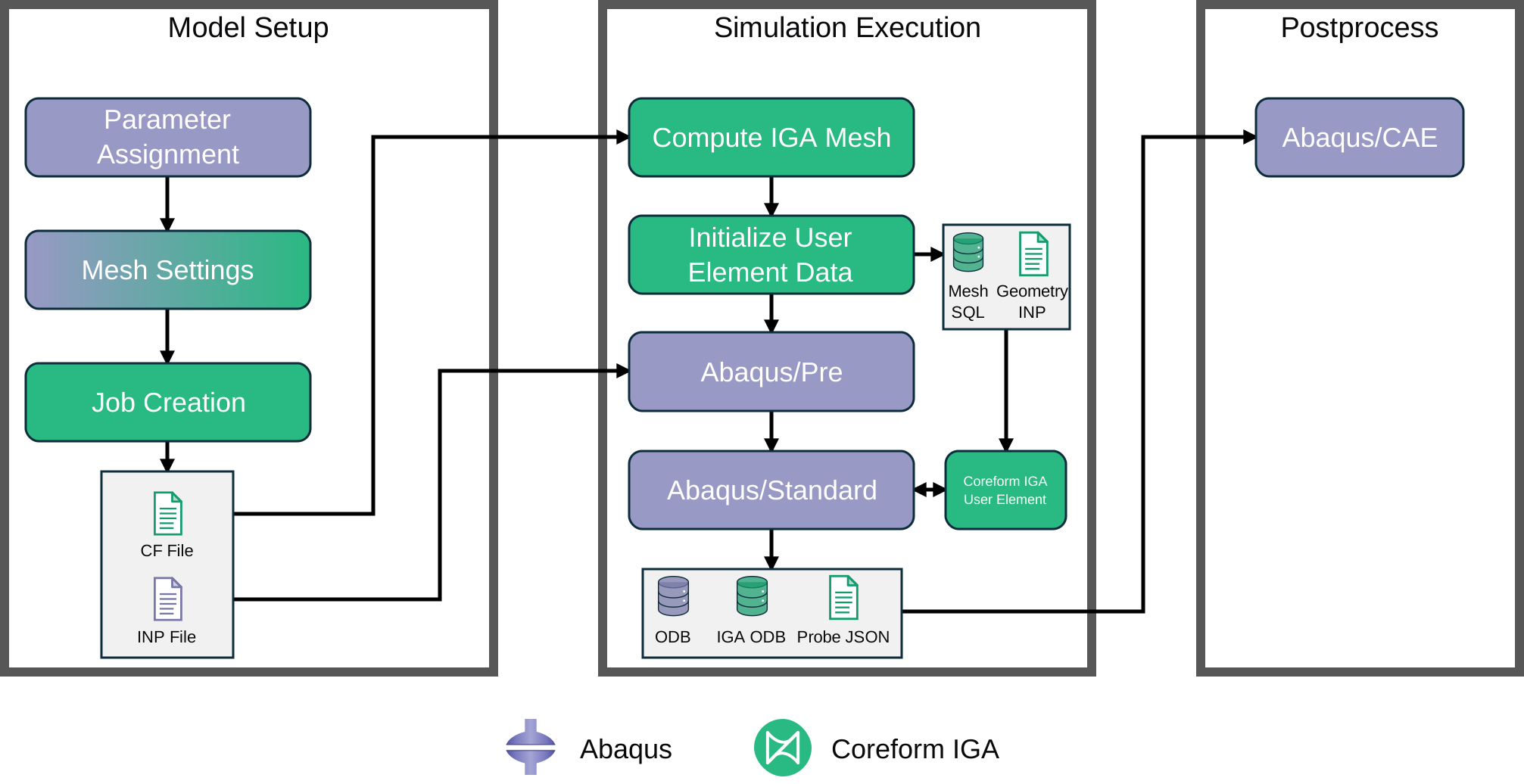
An overview of a Coreform IGA for Abaqus workflow is shown in the illustration below. In this illustration, processes are shown as rounded rectangles while files are shown as icons representing databases or text-files.
- A process that is colored purple signifies that it is a standard Abaqus process or workflow. A process that is colored green signifies that it is part of the Coreform IGA custom application or solver workflow. A process that is bi-colored purple–green signifies that the process can utilize both standard Abaqus and Coreform IGA workflows.
- A file-icon that is colored purple signifies that it is a file that would exist in a standard Abaqus workflow and users should be able to interact with these files as they normally would in a standard Abaqus workflow. A file-icon that is colored green signifies that the file’s existence is unique to the Coreform IGA workflow and users should exercise caution before interacting with these files.
2 Narrative overview
Model Setup (Only Abaqus/CAE license required)
No Coreform licenses are required for the model setup phase, only an Abaqus/CAE license is required.
- Parameter assignment
- Traditional model setup in Abaqus/CAE, importing geometry, creating & assigning materials, defining steps & load conditions, etc.
- Mesh settings
- Coreform IGA for Abaqus supports simulations comprising both regular Abaqus elements as well as Coreform IGA meshes. Users can use Abaqus/CAE’s built-in meshing tools for regular Abaqus meshes, or the Coreform IGA mesh tool to define IGA meshes.
- Job creation
- Simulations involving IGA meshes require the use of the Coreform IGA job tool to create and submit the job.
- This step produces two files:
- An Abaqus
INPfile whose name is<job-name>.inp - A Coreform
CFfile, whose name is<job-name>.cfthat provides input for the trimmed-mesh generation routine
- An Abaqus
- Parameter assignment
Simulation Execution
- Compute trimmed mesh (Coreform IGA for Abaqus license required)
- Generates the trimmed spline mesh as defined by the user.
- Computes element & basis function data (e.g., quadrature, extraction operators, extension operators, function splitting).
- Writes out a
SQLdatabase file, whose name is<job-name>.sql, that contains the trimmed mesh and element/basis function data.
- Initialize user element data & translate Abaqus keywords (Does not require a Coreform IGA for Abaqus license)
- Copies the original Abaqus setup deck,
<job-name>.inp, to the protected source deck<job-name>_source.inp. - Reads
<job-name>_source.inp, translates applicable Abaqus keywords into forms compatible with Coreform IGA, and writes the translated, runnable setup deck back to<job-name>.inp.- See the Abaqus keyword support guide for the translation behavior of each supported semantic case.
- Converts element and basis function data into efficient data structures for Abaqus user-elements and stores this data in the same
SQLdatabase file, whose name is<job-name>.sql. - Generates the IGA geometry deck
<job-name>_iga_geom.inp, which contains*USER ELEMENTand related definitions. The translated<job-name>.inpreferences this geometry deck with an*INCLUDEkeyword.
- Copies the original Abaqus setup deck,
- Execute Abaqus/Pre (Does not require a Coreform IGA for Abaqus license)
- Regular Abaqus/Pre execution
- Execute Abaqus/Standard with Coreform IGA User Elements (Coreform IGA for Abaqus license required)
- Abaqus/Standard is executed with the
uniquelibsoption.- When submitted via Abaqus/CAE this option is automatically set.
- If submitting a job via the command line, the user must specify
uniquelibsmanually in the command and make the Coreform user-element libraries in<coreform-install-dir>/bindiscoverable to Abaqus/Standard. On Windows, add<coreform-install-dir>/binto thePATHenvironment variable; on Linux/macOS, add it toLD_LIBRARY_PATH(equivalently, setusub_lib_dirinabaqus_v6.env). Inuniquelibsmode either mechanism is sufficient to locate the*_usublibraries.
- Abaqus/Standard loads shared libraries,
*_usub.[so|dll]packaged by Coreform that provide the user element functionality.- If no Coreform IGA for Abaqus license is available the simulation will pause until a license becomes available.
- Coreform IGA for Abaqus creates
<job-name>_iga_results.sqlat the start of the analysis. This results database is separate from the<job-name>.sqlmesh and runtime-input database. It contains a copy of the IGA mesh together with the requested IGA result frames and fields written as the analysis proceeds. - Coreform IGA for Abaqus creates an ODB file with the name
<job-name>_iga.odb.- Coreform IGA for Abaqus queries Abaqus/Standard for output field variables and stores them on a linear hex-tet mesh computed during Coreform IGA Mesh within this ODB file.
- If the user specified a Coreform IGA for Abaqus probe, Coreform IGA computes the probe data and saves it to
probe_data.json. - During execution, Abaqus will query Coreform IGA for Abaqus to provide linear system information (e.g., stiffness matrix, mass matrix, force vector).
- After completion of the simulation, the Coreform IGA for Abaqus license is released.
- Abaqus/Standard is executed with the
- Compute trimmed mesh (Coreform IGA for Abaqus license required)
Postprocessing
Visualize and analyze results in Abaqus/CAE
- The
<job-name>.odbfile contains any regular Abaqus elements defined by the user, as well as nodes from the Coreform IGA for Abaqus user-elements, as well as surface meshes generated by Coreform IGA Mesh that are used for boundary conditions, load conditions, constraints, contact, etc., and is compatible with Abaqus/CAE. - The
<job-name>_iga.odbfile contains the linear hex-tet mesh generated by Coreform IGA Mesh and the (currently hard-coded to a limited set) output field variables. - The
probe_data.jsonfile contains Coreform IGA for Abaqus probe variables.- While not natively supported by Abaqus/CAE, skilled analysts can use Abaqus/CAE’s integrated Python console to
import jsonand use thejsonmodule to extract the data as Python objects, and then use the Abaqus Python interface to convert toXYDataobjects for plotting in Abaqus/CAE. - Alternatively, the
jsonfile can be visualized in 3rd-party tools like Python (matplotlib), Julia, Matlab, etc.
- While not natively supported by Abaqus/CAE, skilled analysts can use Abaqus/CAE’s integrated Python console to
- The
Visualize and analyze results in ParaView