Using Coreform IGA for Abaqus/CAE
1 Custom Application
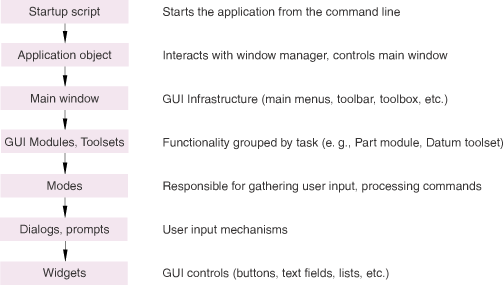
Coreform IGA for Abaqus is integrated into Abaqus/CAE via its “Custom Application” functionality. Put briefly, the Custom Application approach allows a deeper integration within Abaqus/CAE than the Abaqus/CAE Plugins architecture. One key feature provided by Custom Applications is the ability to add buttons for Coreform IGA for Abaqus’ unique features to module task panes. The below image, from the Abaqus documentation link above, provides an overview of Custom Applications GUI Code.
Coreform’s custom application does not require a license to run. The first time you start it you are asked to accept the EULA, and then offered a licensing dialog that you can dismiss with Continue without a license — Abaqus/CAE and the Coreform GUI remain fully usable, though running an analysis needs a license. You can reopen that dialog from Help → Coreform IGA Licensing…. You can find our custom application code within Coreform IGA for Abaqus’ installation directory within interop/abaqus/cf_app. If you find errors or have suggestions for improvement feel free to let us know! However, we recommend not making edits directly to the custom application code to ensure stability of the product.
2 Launching Coreform IGA for Abaqus/CAE
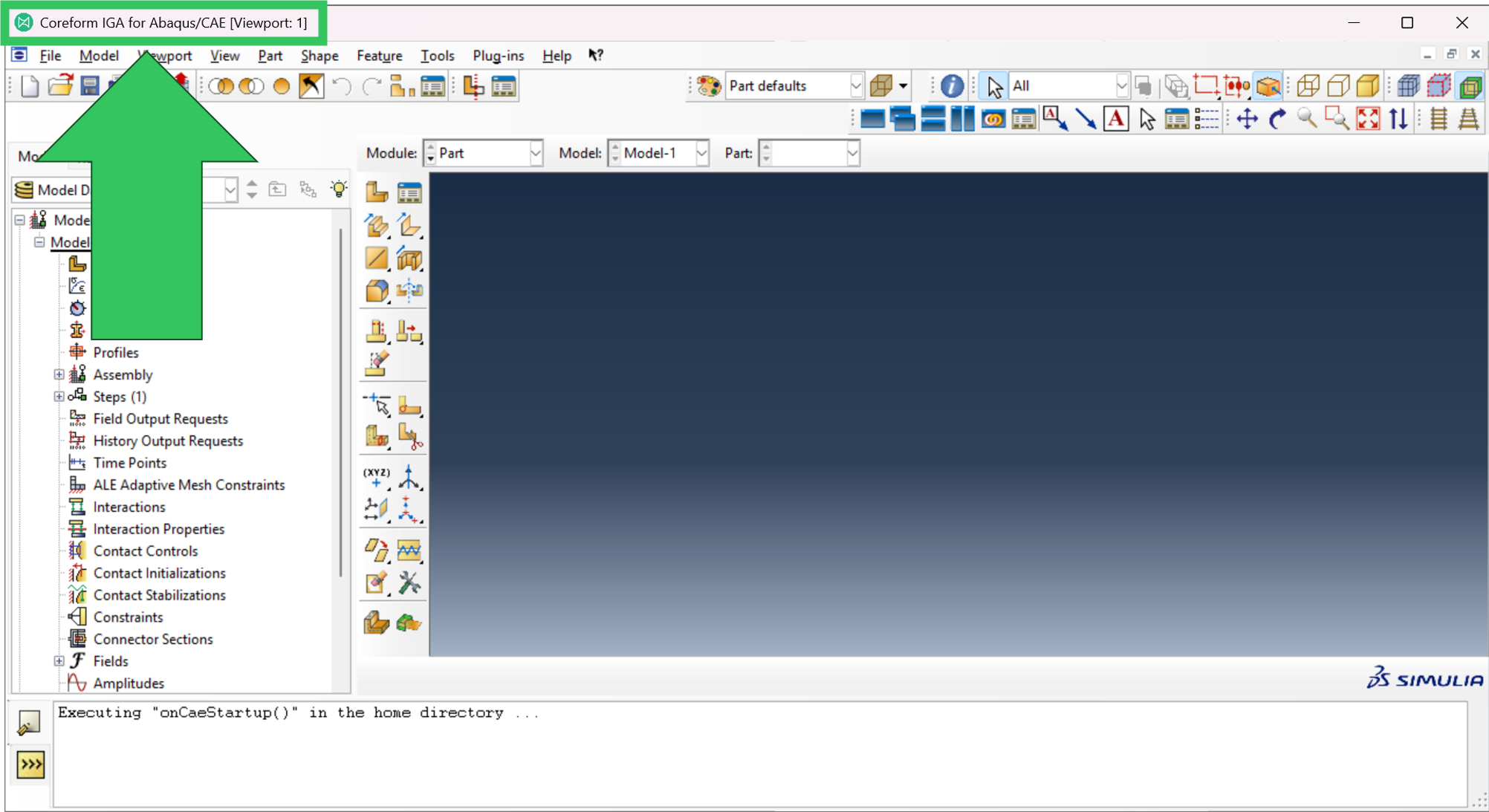
There are several methods by which you can launch the Coreform IGA for Abaqus/CAE custom application. You can confirm the Coreform IGA for Abaqus/CAE custom application launched by checking the application logo and name at the upper left corner of the GUI window:
As well as by checking the icon on your taskbar (note that if a “normal” Abaqus/CAE instance is open, this verification approach might not work):

2.1 Via the coreform_iga.bat batch file
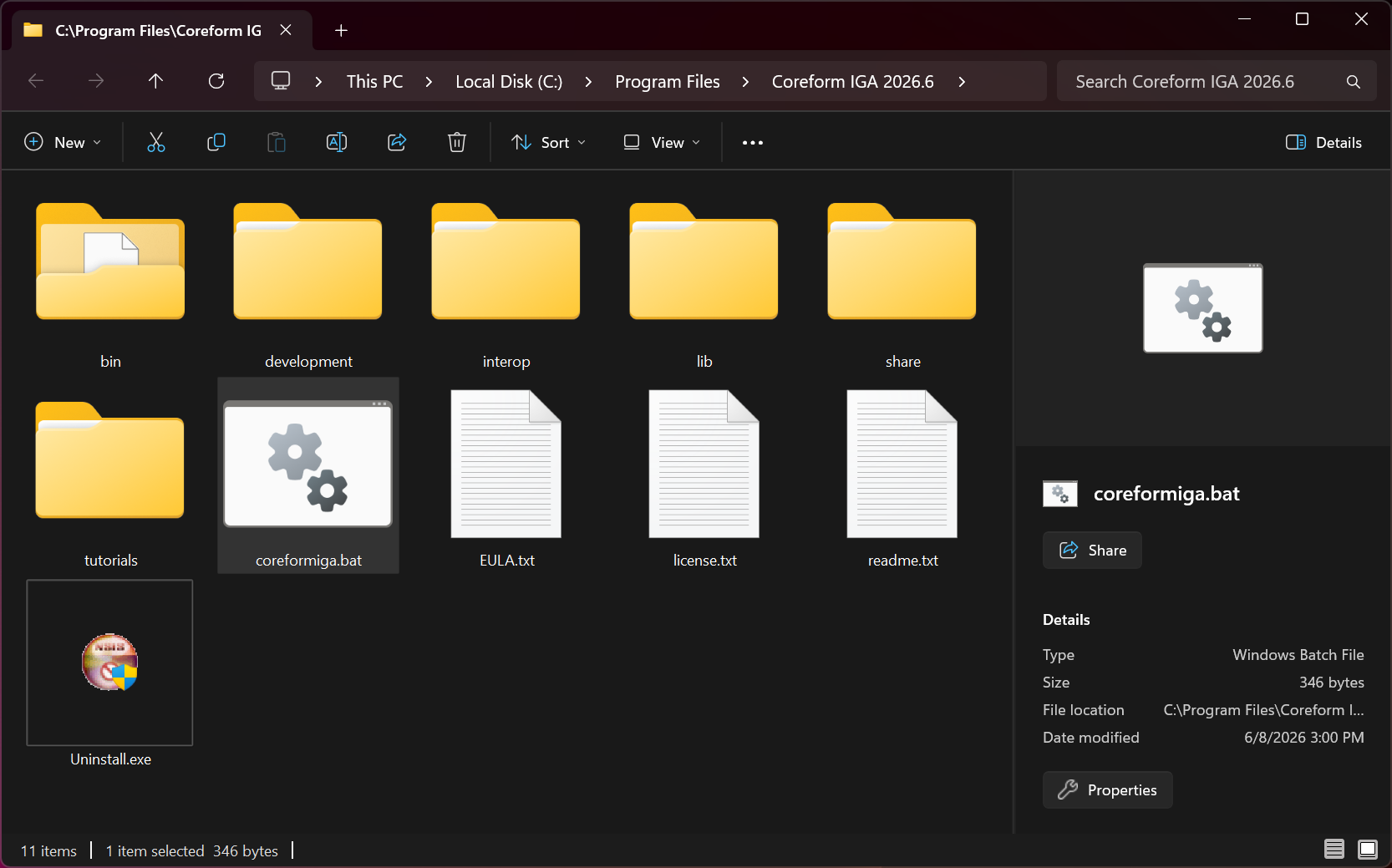
The Coreform IGA for Abaqus/CAE installation directory includes a batch file named coreform_iga.bat. Running this batch file (e.g., by double-clicking the file) will launch the Coreform IGA for Abaqus/CAE custom application.
2.2 Via the Start menu (Windows)
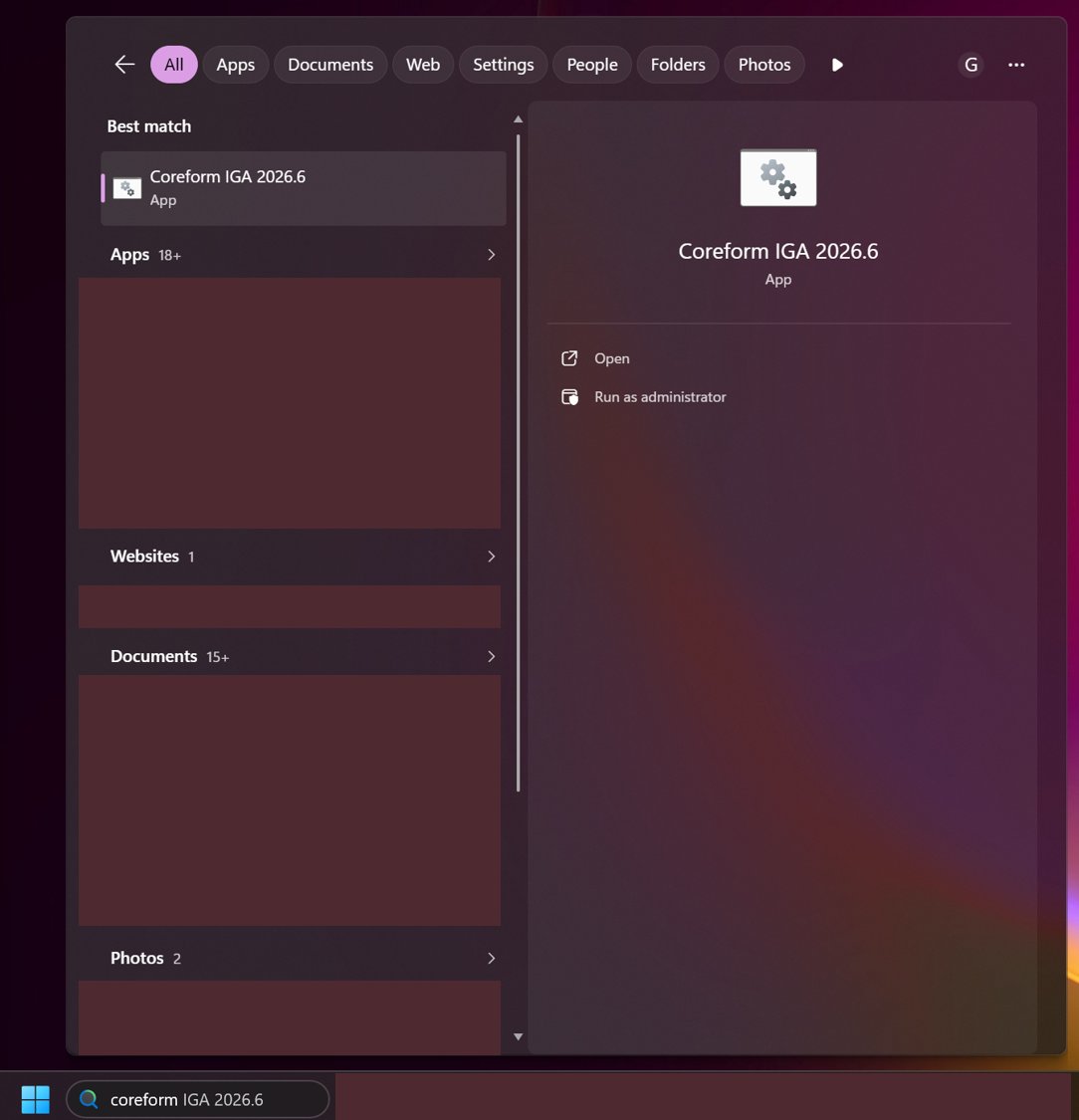
On Windows you can search for Coreform IGA in the Start menu, and Windows should find a shortcut link that is installed to C:\ProgramData\Microsoft\Windows\Start Menu\Programs\Coreform IGA 2026.6 during the installation process. You can Open this link and Coreform IGA for Abaqus/CAE will launch.
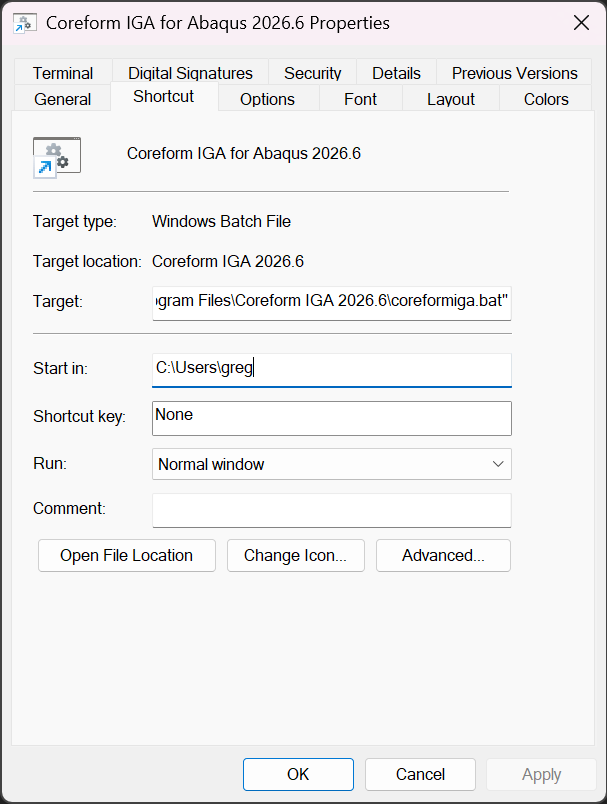
If you open the directory, provided above, containing this shortcut in Windows Explorer and edit the link’s properties (right-click → Properties, or Alt+Enter after selecting the file), you can change the Start in value to specify the default working directory for the application when launched in this manner. The default value set during installation is your user directory.
2.3 Via a terminal application
2.3.1 CMD (Windows)
If you inspect the coreform_iga.bat batch file, which is native to the CMD shell in Windows, you will note there are two critical commands to execute.
The first of these adds the cf_app directory, which contains the custom application’s Python source files, to your current terminal’s PYTHONPATH environment variable.
set "PYTHONPATH=C:\Program Files\Coreform IGA 2026.6\interop\abaqus\cf_app;%PYTHONPATH%"This allows the next command, which launches Abaqus/CAE, to use the -custom argument to find the coreform_iga_app.py source file that specifies the custom application.
"C:\Program Files\SIMULIA\Commands\abq2026mnt.bat" cae -custom coreform_iga_app2.3.2 PowerShell (Windows)
The equivalent commands in PowerShell are:
$env:PYTHONPATH = "C:\Program Files\Coreform IGA 2026.6\interop\abaqus\cf_app;$env:PYTHONPATH"

& "C:\Program Files\SIMULIA\Commands\abq2026mnt.bat" cae -custom coreform_iga_app